How to Get Started With a Password Manager
How many times have you clicked “Forgot Password?” this month?
If you’re like most of us, probably more than you’d like to admit. Between work accounts, streaming apps, and online shopping, remembering every password is nearly impossible. So, what do most people do? They reuse the same password everywhere maybe with a “123” or “!” at the end to make it feel “secure.”
But here’s the problem: once one of those sites gets hacked, all your accounts are at risk.
That’s exactly why password managers exist. They remember and protect all your passwords so you don’t have to securely storing them in one place and even helping you create stronger ones.
If you’ve ever felt overwhelmed by managing passwords, this guide will walk you through how to get started with a password manager even if you’re totally new to it.
What Is a Password Manager?
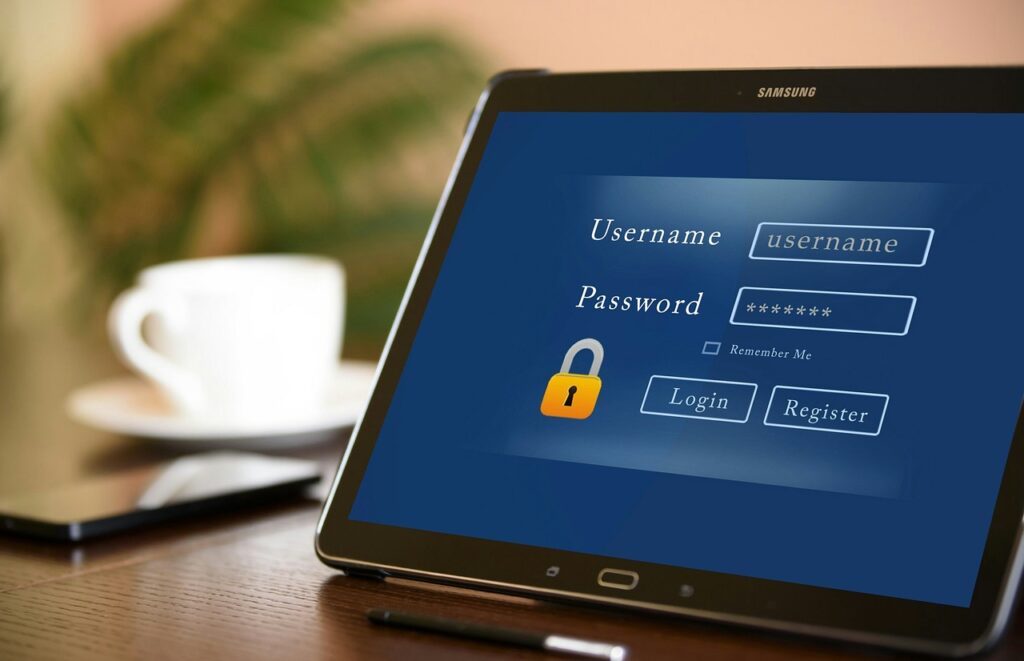
A password manager is like a secure digital vault where you store all your login credentials usernames, passwords, and even two-factor codes.
You only have to remember one master password, and your password manager handles everything else.
Think of it as your personal security assistant:
And it keeps everything encrypted so even hackers (or the company itself) can’t see your data.
It locks all your passwords safely.
It fills in your login details instantly.
Why You Should Use One
Here’s the truth: no one can remember 50+ strong, unique passwords — and you shouldn’t have to.
A password manager makes your online life easier and safer.
Here’s what it does for you:
- Generates strong passwords automatically (no more weak passwords).
- Saves time by auto-filling logins instantly.
- Protects you from phishing websites by recognizing fake URLs.
- Syncs across devices, so your passwords are always with you.
- Keeps everything encrypted, even credit card info and private notes.
In short, a password manager is your digital bodyguard protecting your accounts 24/7.
Step-by-Step: How to Get Started
Setting up a password manager is easier than it sounds. Here’s what to do:
1. Choose and install your password manager
Head to the official website or app store and download one (like Bitwarden or 1Password).
2. Create your master password
Make it long, unique, and memorable. This is the only password you’ll ever need to remember.
3. Add your existing passwords
You can import them from your browser or enter them manually for your most-used accounts.
4. Enable auto-fill and browser integration
This allows the manager to fill in your logins automatically on websites.
5. Sync across devices
Install the app on your phone, tablet, or work computer so everything stays connected.
6. Turn on two-factor authentication (2FA)
This adds another layer of protection to your account just in case.
Smart Tips for Using a Password Manager
Once you’re set up, here are a few habits that’ll keep you extra secure:
- Regularly update weak or old passwords.
- Write down your recovery key and store it offline.
- Use your manager’s password generator for new accounts.
- Turn on biometric unlock (like fingerprint or Face ID) for quick access.
- Don’t store your master password on your computer.